
This KB article is a work in progress.
WordPress sites will work at their fastest when run in the latest supported version of PHP - Currently, this is PHP 8.2. Our cPanel makes it easy to switch between PHP versions, however, it's important to ensure your site is compatible before doing so or you may find your site breaks. I have broken down this KB Article into four sections.
- Preparing your site
- Setting your PHP version and extensions
- Installing LiteSpeed Cache
- Redis Object Cache
Preparing your site
To ensure compatibility with PHP 8.2, it's important that ALL the following components of your website are up to date.
WordPress Core
WordPress has been compatible with PHP 8.2 since late 2022. Chances are your WordPress will be compatible - HOWEVER, there are many security-related releases since and so you should always strive to be running the latest version. To Update, in the admin area of WordPress visit the Dashboard -> Updates link.
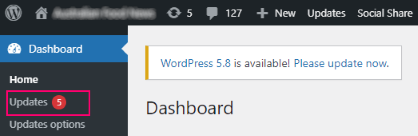
If your WordPress has a new version available, click the UPDATE NOW button.

WordPress should update successfully.
Plugins
By far, the biggest blocker to running PHP 8.2 is out-of-date plugins. Many popular plugins received numerous updates to get ready for PHP 8.2. You can check for plugin updates by clicking on the Dashboard -> Updates link.
You should now see a list of plugins that require updating. Click the Select All checkbox and click the Update Plugins button.
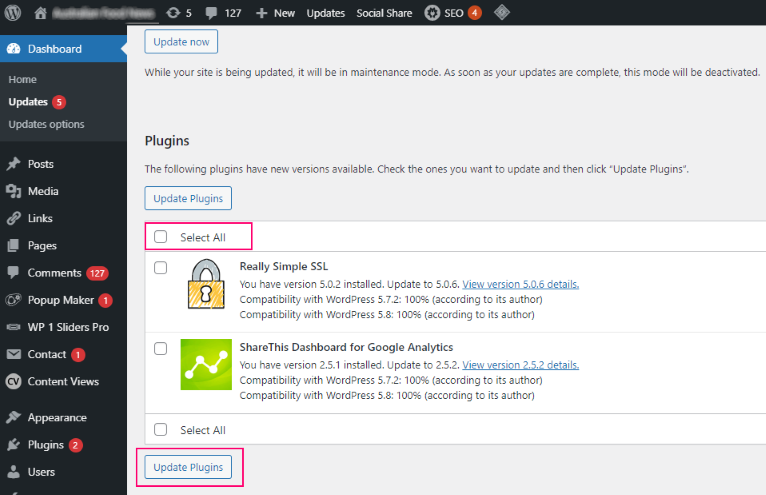
WordPress will now update the plugins. You may find some plugins refuse to update - This is usually due to some plugins being commercial and requiring active licenses. If you have used commercial plugins, you will need to ensure each and every plugin is updated prior to switching to PHP 8.2. Some commercial plugins are bundled with commercial themes, and updating the theme may help with updating the plugins.
Themes
If your site was built correctly, updating your theme should be straightforward. Many developers, however, use cheap and or free themes, and many of these are abandoned by their original authors - so updating isn't possible. If your site was built with a popular commercial theme, for example: Avada, Divi, Betheme, Enfold, X, Flatsome, Salient etc then updating should be possible if you have a valid license. Updating your theme should be done by your web developer - so its best to check with them. If you built your WordPress site yourself and used a popular commercial theme and made no code modifications, it will be safe to update the theme using the update tools. From the WordPress admin area goto Dashboard -> Updates.
Then, select the themes that require an update and click the Update Themes button.

After WordPress has completed updating your themes, test your site. If everything is OK, you can proceed to the next section. If your theme fails to update, you may need to extend your license for the theme in question or contact the theme developer for help in updating the theme.
Setting your PHP version and extensions
To enable PHP 8.2, first login to your sites cPanel. You can find a link to cPanel in our client area. Once you have logged into cPanel, find the 'Select PHP Version' section.
Choose PHP 8.2 from the drop-down list and set it as current.
Click the 'Reset to Default' option. This will preselect all the relevant and optimised WordPress settings.
You can now test your WordPress website. If your WordPress website no longer works, revert to the previous version of PHP by selecting it from the drop-down list and clicking the 'Set as Current' option.
Installing LiteSpeed Cache
You can install the LiteSpeed Cache plug-in from the WordPress Repository. Goto Plugins -> Add New Plugin:
Search for 'Litespeed' and click the Install 'Now Button':
Click the 'Activate' button to activate the plugin:
The plugin will now start caching pages on your site. For the ultimate in performance you should also setup Redis Object Cache. See below.
Redis Object Cache
As of November 2024, we now support secure Redis Object Cache on our Large hosting plan and up. If you have WordPress and are on our Large Hosting plan or higher, we recommend setting up Redis Object Cache in addition to the above. Once you have LiteSpeed Cache installed as per above, please contact support and request Redis Cache to be enabled on your account. Once it's enabled, you can set up the Object cache in WordPress by following these instructions.
In the left-hand side WordPress Menu, goto the LiteSpeed Cache -> Cache Menu:
Now goto the Object tab and change the settings to match the screen shot below:
Now click Save.
You should see the Redis Extension Enabled AND the Connection Test Passed. If you do not see the Connection Test: Passed then the object cache is not working - Please check your settings and if necessary contact support.

Add Comment